To computer geek. How to install operating system in notebook in which dvd/cd drive is not working?
i Computer Geek,. I have one question for you all. My notebook is Toshiba satellite A105-S4284.I am Using windows xp professional. My DVD Drive is not working. I tried to boot from dvd drive but it is unable to boot from dvd drive. It cannot read Cd either. I want to reinstall operating system.As notebook is infected by some Trojan virus. Computer is very very slow and sound is very distracting. It takes 10-15 min to boot and to use. This notebook supports 5 boot option 1) HDD 2) FDD 3) cd/dvd 4) lan 5) usb drive Here is my question. How to install operating system in notebook in which dvd/cd drive is not working?and i dont have recovery partition in my notebook.Is there any way we can use usb drive to Install new operating system. If yes then how? please let me know. Thanks in advance
AnonymousGuy · Jul 11, 2009 2:16 PM · 17,206 views
Hey pasa, your laptop is old and it's not worth to spend anything on it. Just buy a new one which u already did, i believe. Save it, make it classics and show it to your kids that how their dad used to play with it. Now just let it go, your trashtop. Oh yea, don't visit any porn websites otherwise your new laptop............................. !!!
All The Way · Jul 11, 2009 2:55 PM
All right here are the few steps that you can do First find the operating system and download it to the usb and make sure to make that usb a bootable usb drive. because if this usb is not bootable then it wont boot up. second thing is when the laptop just boot up press functions keys(function keys dpends on company) and try to boot up in usb mode. common for this type are f12 or f10 or f2. so once the usb boot up is set to usb you should be fine.
xcopsgen · Jul 11, 2009 3:47 PM
Open ur computer .. remove DVD drive and add new one and install or Use Lan to install or download image (.iso) of an OS and use Virual drive to install stuff ( might work ) -iphone
iphone · Jul 11, 2009 3:47 PM
At the boot menu change the boot priority .. make cd/dvd drive higher priority than hdd drive. As you mentioned, 1) HDD 2) FDD 3) cd/dvd 4) lan 5) usb drive.. this means, each time you boot your machine, it boots frist from HDD (1st priority).. How to change boot priority ? >> google .
ANS · Jul 11, 2009 4:55 PM
If you have USB cd/dvd drive, it should not be a problem.
M$Hacks · Jul 11, 2009 5:18 PM
Thank you guys for your time for answering my queries. But still i am not able to make the proper bootable USB DRIVE. My Notebook is not able to boot from USB DRIVE. followed these steps: 1) Download packagein desktop which contains the three programs which is needed to make a bootable USB flash drive, which are BootSect, USB_prep8, and PeToUSB. 2) Open the USB_prep8 folder, find USB_prep8.cmd and run it, pressing any key to continue when prompted. This will initiate PeToUSB. PeToUSB will be used to format your flash drive, so it is suggested that you back up any valuable data that you might have on your flash drive before proceeding. Once the backup’s done or you are sure it’s OK for you to format your flash drive, see the PeToUSB options and make sure that “Enable Disk Format”, “Quick Format” and “Enable LBA (FAT16X)” are checked. After you click start and agree to what comes next, your USB flash drive will be formatted, and the next step would be to configure it so that it becomes bootable. Close PeToUSB and the small command prompt window that you opened earlier. 3. Make your USB flash drive bootable using bootsect. Here’s how. Assuming that the bootsect folder you extracted earlier is already on your desktop, simply do the following. Open a command prompt window by pressing the Windows key + R (or going to Start > Run > typing “cmd” without the quotation marks and hitting Enter). At the command prompt, type the following word for word: 1. “cd Desktop” 2. “cd bootsect” 3. “BootSect.exe” 4. “BootSect.exe /nt60 d:” (wherein “d” stands for the designated letter of my USB flash drive; exchange it with yours if it’s different, since it could be e, f, g, etc.) And if all goes well, you should be able to read the following message: “Bootcode was successfully updated on all volumes”. This means you now have a bootable USB flash drive. Congratulations! 4) Copy the operatiing system install files to your bootable USB flash drive. Perhaps the easiest step in all of this minor hackery, is this. Find your Windows 7 beta ISO file, extract its contents using WinRAR, and copy the resulting files (all of them) into your empty and newly configured to boot USB flash drive. Once that’s done, safely remove it, and use it to boot any computer to install Windows 7 on it. It’s that simple. here is the link: http://www.electronicpulp.net/... One more which is similiar to above link: http://www.eeeguides.com/2007/... Last edited: 12-Jul-09 01:13 AM
AnonymousGuy · Jul 12, 2009 1:09 AM
Last edited: 17-Oct-09 09:18 AM
garbagegigo · Oct 17, 2009 9:17 AM
I agree with iPhone. Easiest thing, if you have the iso file of the Operating system is to mount the iso into a virtual drive and install thru that. I use Magiciso.........have been using it for years, works flawlessly. You can also boot from USB ( you need like a 8gb, 16 gb usb though)
yellow · Oct 17, 2009 9:45 AM
This conversation is preserved exactly as it was on the original Sajha.com and can't accept new replies.
Start a New DiscussionYou might be interested in...




-
Room Available for Rent USD 850.00Melrose, MA ·
-
One bed room available for rent USD 1,300.00Germantown, MD ·
-
Malden, MA, United States · Reposted Originally posted
-
Big Room with Parking Next to bus stop USD 1,100.00Everett, MA ·
-
Rooms Available for Rent USD 2,700.00Reston, VA ·
-
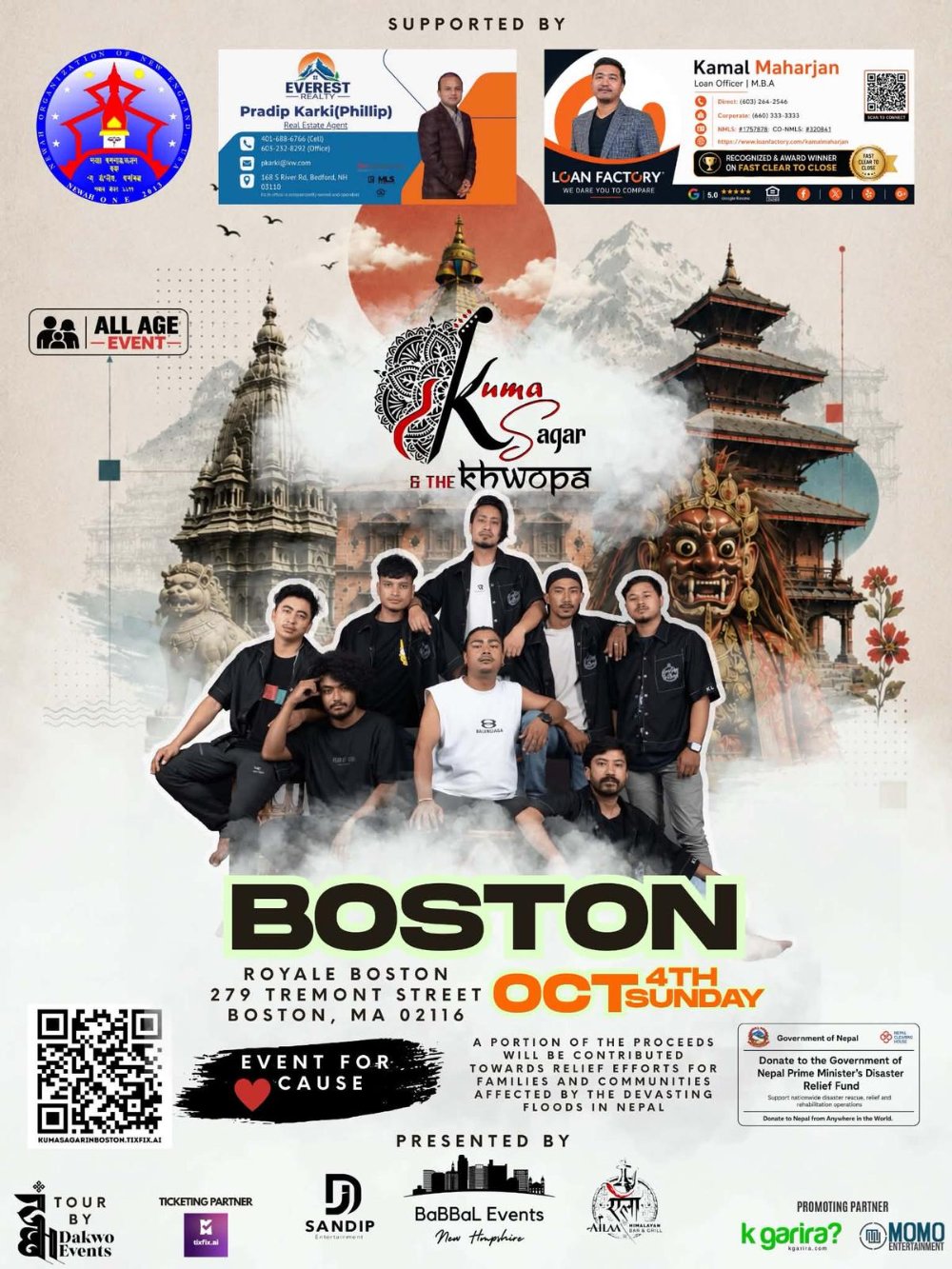 Oct 4, 2026 7:00 PM · Boston / New England · 506 views
 -
 Nepal Festival Perth 2026 FestivalOct 10, 2026 10:00 AM · Perth / Western Australia · 220 views
 -
 Grand Dashain Mela 2026 FestivalOct 10, 2026 11:00 AM · Bay Area / Northern California · 208 views
 -
 Oct 11, 2026 11:00 AM · DMV / Greater Washington · 221 views · Dashain
 -
 Dashain Festival Fulpati PartyOct 17, 2026 10:00 PM · Greater London · 182 views · Dashain
-
✓Vianet Communications OtherKathmandu · · 280 views
-
Aama Lama RestaurantMalden, MA · · 238 views
-
Ailaa Himalayan Bar & Grill RestaurantStoneham, MA · · 239 views
-
Ailaa Himalayan Bar & Grill RestaurantBedford, TX · · 214 views
-
Annapurna Curry & Sekuwa House RestaurantManchester, NH · · 218 views